Update No. 36
Discounts on offers, Pilot reads your website traffic, and video on Bluesky
Add quantities and discounts to offers and send the signed offer as a PDF, ask Pilot how your website is doing, post a video to Bluesky, and trust the numbers in your Email overview.
Offers can now carry quantities, units and discounts, and a customer who accepts one gets the offer they signed as a PDF. Pilot can answer questions about your website traffic, and it shows booking comparisons as a small chart.
You can also post a video to Bluesky, and the Email overview now counts the way you would expect.
- Offers with quantities and discounts. Each line on an offer can have a quantity, a unit such as hours, days or months, and its own discount. You can also take a discount off the whole offer. Your customer sees the original price struck through and how much they save.
- A confirmation your customer can keep. When a customer accepts an offer, they and the deal owner get a confirmation email with the accepted offer attached as a PDF, including any add-ons they chose. The offer timeline shows when each confirmation went out and which add-ons were picked.
- Ask Pilot about your website traffic. Ask how many people visited your site, where they came from or what they searched for, over the last 7, 28 or 90 days. Pilot uses the same numbers you see under Site, and if you have more than one site it asks which one you mean.
- Booking comparisons at a glance. Ask Pilot to compare two periods and you get a small chart above the answer, built from your booking data. Pilot can also tell you how many hours were free and how many of them could have been sold. If working hours aren't set, Pilot says so instead of guessing.
- Pilot copy and paste. Copy a Pilot answer or a whole conversation and you keep the words and formatting, without the source labels. Paste from a spreadsheet or Word and the text stays.
- Automation flows stay connected after you publish. After you publish, the flow builder stays connected, and it reconnects if the connection drops.
- A way out if the web app won't start. If the web app never finishes starting, you get Try again and Reset this device. That clears this browser's saved data so you can start fresh without signing out.
- Video on Bluesky. A Bluesky post can now carry one video, or up to four photos. Posts you publish right away also stay on the calendar, so you can follow them while they go out and see it if something fails.
- Email numbers you can trust. The Email overview now counts an email as sent only when it actually left, and click rate is measured against emails delivered. Each comparison names the period it compares with.
- YouTube numbers as YouTube reports them. Insights now show YouTube's own views, likes and comments. Reach and engagement rates aren't shown for YouTube, and YouTube is kept out of totals across networks.
- Voice messages in Helpdesk. Customers can send voice messages from the website chat. Voice notes from the website chat, Telegram and Instagram play in the Inbox. On the web you can record a voice reply to a website chat, and a reply on Telegram goes out as a voice message.
- SMS from the Inbox. Workspaces with SMS turned on and a connected shop phone can text customers from the Inbox and the contact page on the web.
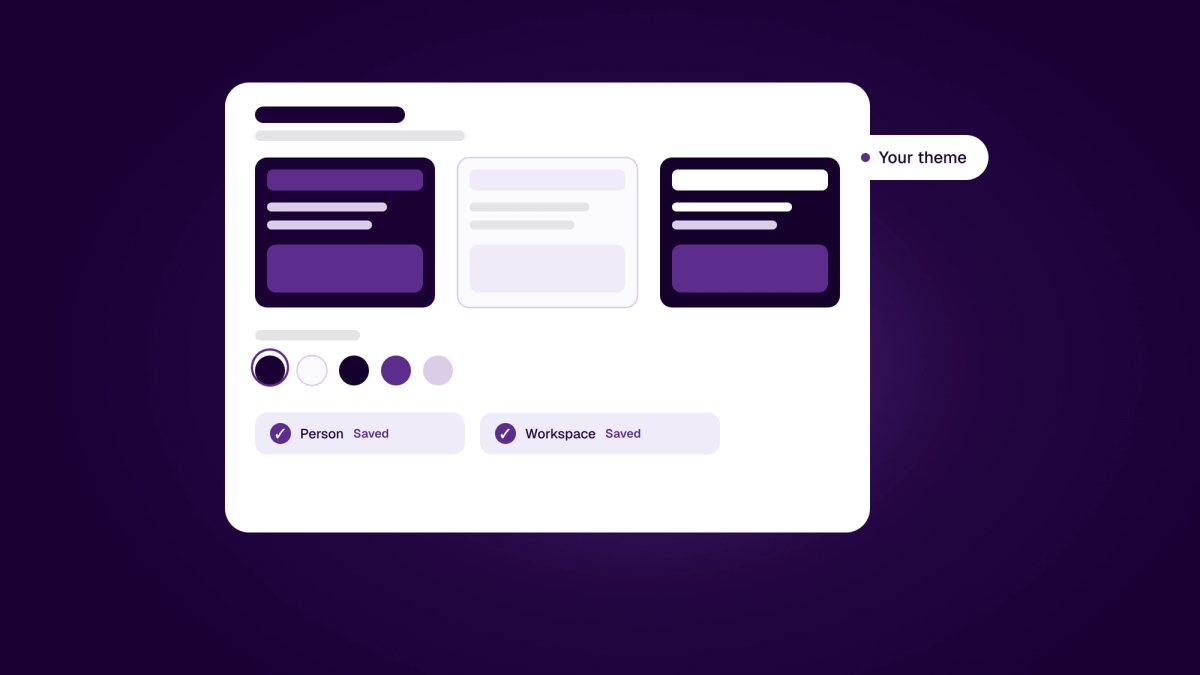
- App themes on the web. Every workspace on the web can use app themes. Choose Aubergine, Bordeaux or Kobolt under Appearance for yourself in each workspace. Owners and admins can also set a workspace default.
- Inbox details. Links in chat messages show as cards with a title and a short preview in the Helpdesk inbox. New Kundeservice cases are now tagged with the business they started in.
- Google Postmaster Tools and Search Console. Gmail Postmaster Tools and Google Search Console are now included in Business and Enterprise. Connect them under Brand, Integrations.
For developers
- Meda UI 3.16. The booking DetailsScreen in @medalsocial/meda 3.16.0 has a new optional emailRequired setting. It is off by default. When you turn it on, a blank email address is refused with its own message. If you leave it off, nothing changes.